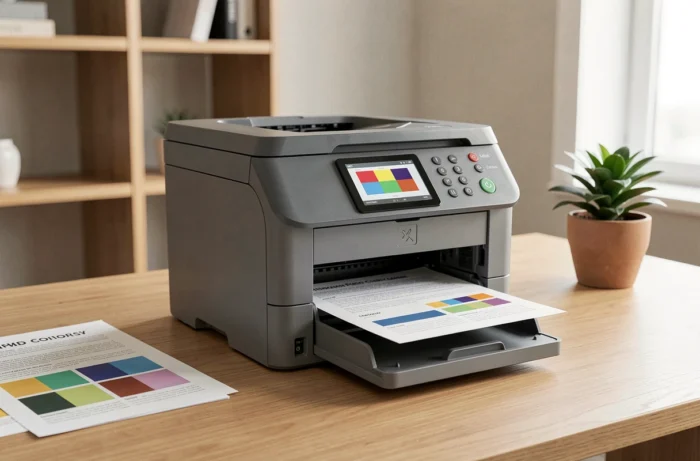
Before investing in a color laser multifunction printer, the first question to ask is how much it really costs to run. The purchase price of the HP Color LaserJet Pro MFP M281fdw represents only a fraction of the total expense: toner cartridges, connectivity, print speed and firmware management all weigh just as heavily, if not more so, in day-to-day use.
HP 202 toner: consumable costs and compatible cartridges
The M281fdw uses the HP 202 toner series, with cartridge numbers CF500 to CF503. Each color (black, cyan, magenta and yellow) is available in standard and high-yield versions. This makes a significant difference to the long-term budget.
Choosing between genuine HP cartridges and third-party compatible cartridges is no small matter. Reports documented on websites specializing in HP consumables indicate that firmware updates can block certain non-HP chips. A compatible cartridge that worked perfectly may no longer be recognized after an automatic firmware update.
If you’re considering buying this HP Color LaserJet Pro MFP M281fdw printer, it’s worth checking the availability and price of all four toner colors before making a decision, rather than focusing solely on the price of the printer itself.
- High-yield cartridges reduce the cost per page, but require a higher upfront investment for each color.
- Compatible cartridges cost less, but carry a risk of incompatibility due to firmware updates.
- Disabling automatic firmware updates preserves compatibility with third-party cartridges, but means giving up security patches.
Firmware and HP Dynamic Security: a technical trade-off to consider
HP builds a Dynamic Security feature into its laser printers that checks the authenticity of the chips in toner cartridges. The M280/M281 series user guide explicitly mentions firmware updates and the associated security features.
In practice, owners using compatible cartridges need to manage their updates actively. Accepting a firmware update may render an existing stock of third-party toner unusable. Declining the update keeps the printer working, but may leave it exposed to network security vulnerabilities—a consideration if the printer is connected via Wi-Fi or Ethernet in an office environment.
This trade-off between network security and freedom to choose consumables doesn’t appear on standard product pages. It’s a genuine factor for small businesses that print in color regularly.
Connectivity and color laser printing: Wi-Fi, Ethernet and USB
The M281fdw offers three connection options: Wi-Fi, Ethernet and USB. This triple connectivity makes it suitable for both a wired desktop setup and a shared wireless home network with multiple devices.
Wi-Fi enables printing from a smartphone or tablet, a now-common use even in professional settings. Ethernet is suited to environments where network stability matters more than flexibility. The USB port is still useful for a direct connection without network setup.
| Connection type | Primary use | Advantage | Limitation |
|---|---|---|---|
| Wi-Fi | Home network, mobile printing | Flexible, no cable required | Depends on signal quality |
| Ethernet | Office with a wired network | Stable, fast connection | Requires a network cable |
| USB | Single workstation, troubleshooting | Easy setup | Connects only one computer |
For sharing between two or three workstations in a small office, Ethernet is the most reliable option for regular print volumes. Wi-Fi is better suited to occasional home use.
Color laser or inkjet printing: why choose laser for a small office
The M281fdw’s color laser technology stands apart from inkjet on a frequently overlooked point: toner doesn’t dry out between uses. An office that prints intermittently (a few pages a day, then nothing for a week) won’t have clogged nozzles or ink-consuming cleaning cycles.
Laser printing produces crisp text from the very first page, with no noticeable warm-up time on recent models in this range. Color documents (charts, presentations and internal brochures) come out at a quality suitable for everyday professional use, though they don’t match the photo detail of a high-end inkjet printer.
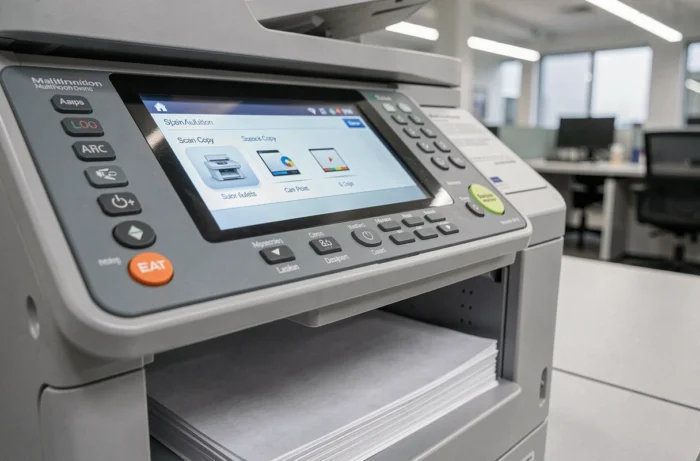
Multifunction features: copy, scan and fax
In addition to printing, the M281fdw includes a scanner, copier and fax. The flatbed scanner and automatic document feeder let you scan multiple pages without manually handling each sheet.
- Fax is still useful in some sectors (healthcare, legal services and government) where this method of transmission is still required.
- Direct color copying, without using a computer, speeds up everyday tasks.
- Scanning to email or a network folder makes digital archiving easier.
Combining all these functions in one device saves desk space and reduces the number of devices that need maintenance.
HP warranty and drivers: what manufacturer support covers
HP provides downloadable drivers for the M280/M281 series on its support website. They are compatible with current Windows and macOS systems. Installation uses a setup assistant that detects the printer over the network or via USB.
The standard manufacturer’s warranty covers hardware defects. It does not cover malfunctions caused by using consumables that are not HP-certified, which is consistent with the Dynamic Security policy mentioned above. Checking the warranty terms before choosing compatible cartridges can help avoid an unpleasant surprise if the printer breaks down.
Choosing this color laser multifunction printer comes down to weighing three factors: the long-term cost of HP 202 toner cartridges, your willingness to accept HP’s firmware policy, and your actual need for features such as fax or Ethernet. These three factors matter more than the spec sheet alone.